
Running a season
Weeks & Locking
The Weeks tab, what each week's badge means, and what locking a week does — and does not — do.
Admins2 sectionsabout 1 min
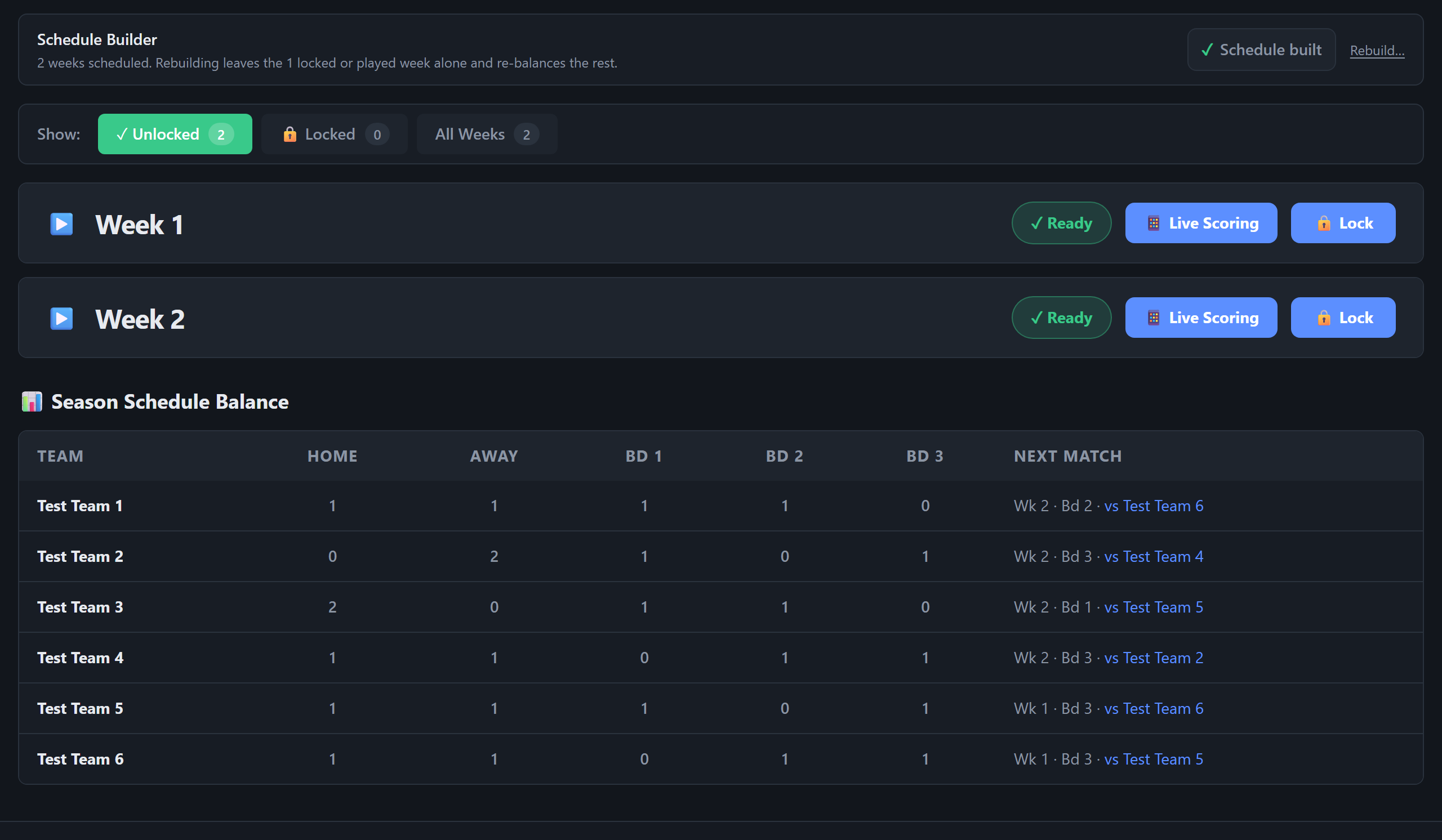
The Weeks tab#
 Open full size ↗
 Open full size ↗
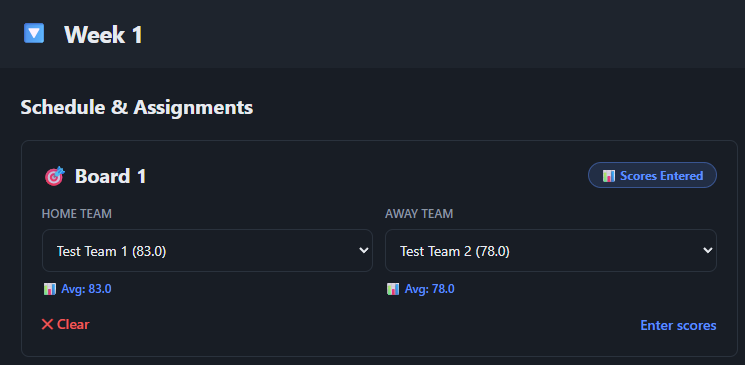
One row per week. Tap a week to open it to its boards. Each week's badge says where it is:
| Badge | Meaning |
|---|---|
| ✓ Ready | Not locked yet — still to play, or being played. |
| LIVE | A match is being scored right now. |
| 🔐 LOCKED | Marked done, with the date it was locked. |
Each board inside a week shows ✓ Scheduled, a pulsing LIVE with View Board →, or 📊 Scores Entered.
Tip
The tab opens on unlocked weeks only, which keeps it quick. 🔒 Locked and All Weeks beside it show the rest.
Locking a week#
Lock a week once every board has finished — either 🔒 Lock Week N on the boards screen at the end of the night, or 🔒 Lock on the week's row in the Weeks tab. 🔓 Unlock puts it back.
| Locking does | Locking does not |
|---|---|
| Move the app on to the next week as the one being played | Change any score, average or standing — those update as scores are saved |
| Protect the week from a schedule rebuild | Stop a board being scored or corrected |
| Tuck the week away under 🔒 Locked on the Weeks tab | Decide what goes in the print packet |
Related
Running a seasonEntering Scores by HandTyping a match in from the paper scoresheet when it was not scored live — the final scores exactly as written, and every shooter's innings.Running a seasonThe ScheduleGenerating a balanced round-robin, rebuilding it safely mid-season, changing a single week by hand, and the read-only Schedule tab.League nightBetween Games & the Night RecapThe review and captain approval after each game, settling a game that ends level, the Night Recap when the match is done, and locking the week at the end of the night.